
Operate
Bring in the files you already get. FLO fills in the day.
Upload the Cortex export and the Route Assignment PDF to fill the Daily Timesheet, and bring in the weekly performance reports without retyping a single line.
What's inside
Routes
Today's route files
- Cortex Export
- Route Assignment
- Saved Route Sheets
- Routes found
- Matched to the drivers you scheduled
- Vans
- Suggested by your Fleet rules
- Changes
- Reviewed before they're applied
- End of Day
- Close the day with the route files in
The problem
Retyping routes every morning costs the first hour of the day.
Routes, staging and wave times already exist in files your station receives. Copying them into a spreadsheet by hand is slow, and one wrong line sends a driver to the wrong van.
How FLO solves it
FLO reads the route files you already download and turns them into the day's assignments, showing every change for review before it's applied.
Walkthrough
From Cortex export to Daily Timesheet
One invented route, CX104, from the two files your station already gets to its Daily Timesheet row.
- 01
Upload the Cortex export
FLO reads five columns: route code, service type, planned departure, Transporter ID and driver name. Route progress, stops and packages are ignored.
Cortex export (.xlsx): the columns FLO reads. Invented data. - Route code
- CX104
- DSP
- Sample Logistics LLC
- Delivery Service Type
- Standard Parcel
- Planned Departure Time
- 10:20
- Transporter Id
- A2SAMPLE0001
- Driver name
- Jordan Rivera
Route code DSP Delivery Service Type Planned Departure Time Transporter Id Driver name CX104 Sample Logistics LLC Standard Parcel 10:20 A2SAMPLE0001 Jordan Rivera - 02
Review the matches
Before anything changes, you see what FLO will add, update or needs you to decide. A different value changes only if you accept it.
Simplified from the review screen. Invented data. - Route
- CX104
- Driver
- Jordan Rivera
- What FLO will do
- Matched to the scheduled driver; fills the blank departure time
- Route
- CX118
- Driver
- Not on this day's schedule
- What FLO will do
- Needs you: pick a driver or leave it
Route Driver What FLO will do CX104 Jordan Rivera Matched to the scheduled driver; fills the blank departure time CX118 Not on this day's schedule Needs you: pick a driver or leave it - 03
Upload the Route Assignment PDF
The PDF adds staging, time, bags, overflow and packages. Its staging wins, even on a published day. Drivers and vans are never touched.
Route Assignment PDF: what FLO reads for one route. Invented data. - Route
- CX104
- Staging
- STG.A.12
- Time
- 10:20 AM
- Bags
- 12
- Overflow
- 4
- Packages
- 238
Route Staging Time Bags Overflow Packages CX104 STG.A.12 10:20 AM 12 4 238 - 04
The row on the Daily Timesheet
The row now has its driver, route type, departure and staging. FLO suggests the van from your Fleet rules.
The resulting Daily Timesheet row. Invented data. - Route
- CX104
- Driver
- Jordan Rivera
- Route type
- Standard Parcel
- Staging
- STG.A.12
- Van
- Van 14 (suggested by your rules)
Route Driver Route type Staging Van CX104 Jordan Rivera Standard Parcel STG.A.12 Van 14 (suggested by your rules) 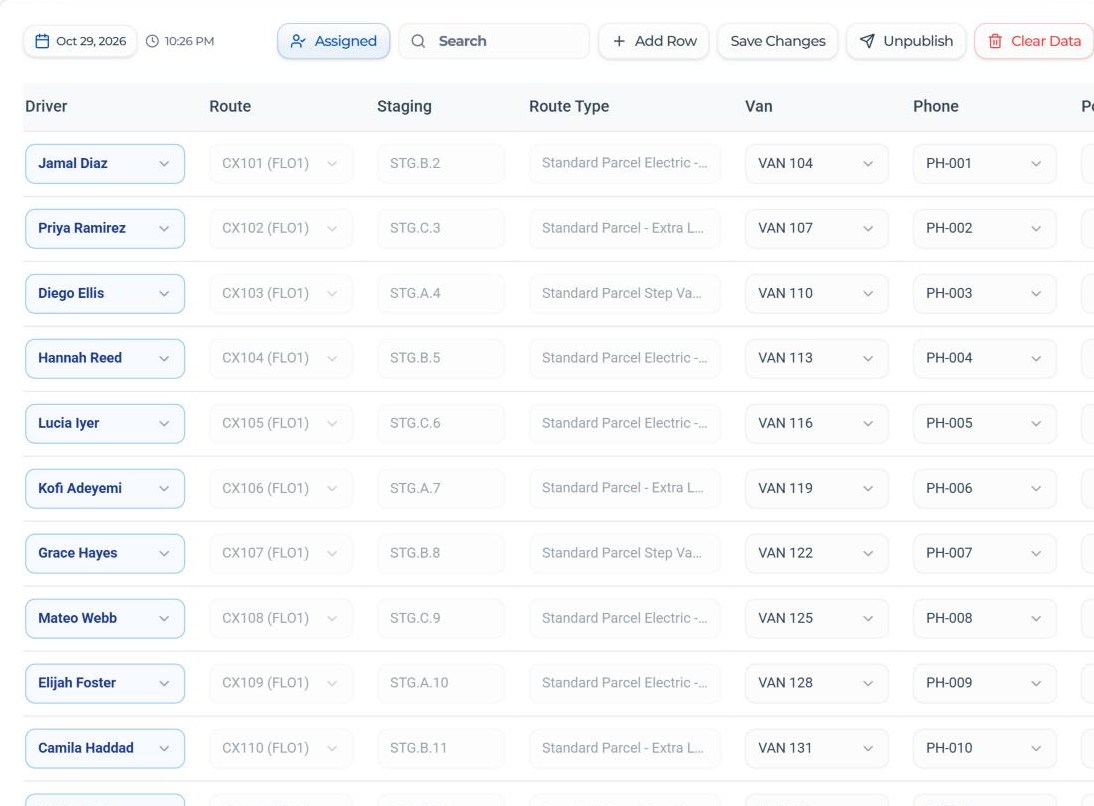
The Daily Timesheet in FLO, with invented drivers and routes.
- Field
- Route code
- Cortex export
- Yes
- Route Assignment PDF
- Yes
- Field
- Route type
- Cortex export
- Yes
- Route Assignment PDF
- Yes
- Field
- Planned departure time
- Cortex export
- Yes
- Route Assignment PDF
- No
- Field
- Driver
- Cortex export
- Yes, by Transporter ID, matched to the schedule
- Route Assignment PDF
- No, never changed
- Field
- Staging
- Cortex export
- No
- Route Assignment PDF
- Yes, and it replaces typed staging
- Field
- Time, bags, overflow, packages
- Cortex export
- No
- Route Assignment PDF
- Yes
- Field
- Van (from your Fleet rules)
- Cortex export
- No
- Route Assignment PDF
- No
| Field | Cortex export | Route Assignment PDF |
|---|---|---|
| Route code | Yes | Yes |
| Route type | Yes | Yes |
| Planned departure time | Yes | No |
| Driver | Yes, by Transporter ID, matched to the schedule | No, never changed |
| Staging | No | Yes, and it replaces typed staging |
| Time, bags, overflow, packages | No | Yes |
| Van (from your Fleet rules) | No | No |
How FLO's import rules handle each field.
When only one file is in
- Cortex only: routes, types, departures and drivers fill in. Staging stays blank.
- Route Assignment only: routes, staging and counts fill in. You pair the drivers.
- Either order works. Uploading the same file again changes nothing.
- End of Day needs the Cortex export, plus the Route Assignment unless your station turned that off.
What FLO never does with route files
- Ask for your Amazon login
- Keep the original file
- Change a published driver from a file
- Pick vans from a file; vans come from your Fleet rules
Inside Route Files & Imports
What it does, in detail.
Cortex Export import
Upload the .xlsx export and FLO lists each route, matched to the drivers you scheduled.
Route Assignment PDF
Upload the Route Assignment PDF to fill staging and route details on the Daily Timesheet, even on a day you've already published.
Route Loadout for every route
The Route Assignment PDF's totes and overflow, by sort zone and in printed order, for dispatch in one click and on the assigned driver's phone. Tote labels stay exactly as printed, like Green 0954.
Saved Route Sheets
Look back at the routes imported for any date.
Van assignment rules
Vans are suggested in order, or by the Fleet rules you save for each route type.
The newest file wins
If an older upload finishes after a newer one, FLO keeps the newer routes.
Close Day checks
Choose to require the route files before End of Day can be signed off.
Weekly performance reports
Bring in the weekly CSV exports and the DA POD Details PDF in any order. FLO works out which report each file is.
How it works
Four steps, every time.
Download
Get the day's files the way you do now.
Upload
Drop them into Routes in FLO.
Review
Check the matches and changes FLO found.
Apply
Apply them to the Daily Timesheet and get on with loadout.
The specifics
The details your team will ask about.
Files FLO reads
- Cortex Export (.xlsx)
- Route Assignment (PDF)
- DSP Scorecard (PDF)
- Weekly performance CSVs
- DA POD Details (PDF)
- Driver roster (CSV)
- Fleet list (.xlsx or .csv)
- Phone lists
What FLO does automatically
- Matches routes to scheduled drivers
- Suggests vans from your rules
- Shows every change before it's applied
- Keeps the newest upload
What your team decides
- Which changes to apply
- Whether Close Day needs route files
- Your van assignment rules
Plan availability: Included on every plan: Starter, Fleet, Pro and Enterprise. See pricing
Who it helps
Built for everyone at the station.
Dispatchers
Routes on the timesheet in minutes, not an hour.
Operations Managers
The same morning routine, whoever is dispatching.
DSP Owners
Fewer wrong-van and wrong-route mistakes.
Fleet Managers
Vans assigned by the rules you set.
Keep exploring
Related areas of FLO.
- No. FLO never asks for it. You upload the files you already download, and FLO reads them.
- Upload the newer Route Assignment PDF. FLO shows what changed and applies it to the published day.
- Yes. Settings lets you require route files before the End of Day report is signed off.
- FLO keeps the routes and details it reads from each file, not the file itself.
See Route Files & Imports with your own station.
Book a walkthrough with our team, or see plans and how the free trial works.
15-day free trial · Independent software, not affiliated with Amazon